
Sync WooCommerce Orders to Google Sheets CRM Using n8n
WooCommerce runs your storefront well, but it’s not a CRM, and most store owners eventually end up needing order data somewhere more flexible — a shared sheet the sales team can filter, a lightweight CRM view for a small team that doesn’t want to pay for HubSpot, or a simple dashboard for tracking repeat customers. The default answer is copying orders over manually, which works until order volume makes that impossible to sustain.
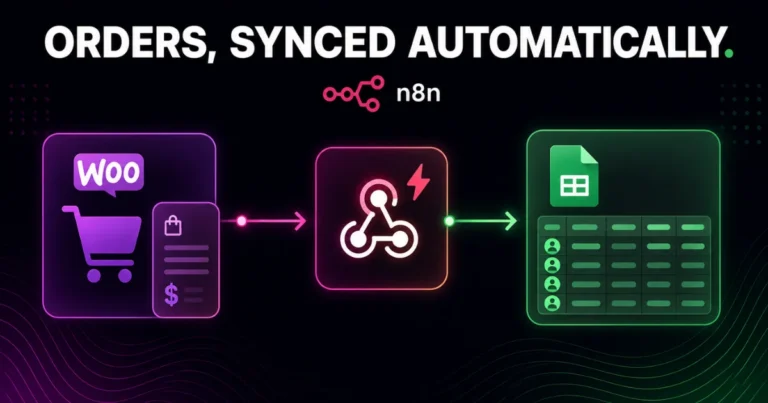
n8n solves this cleanly. In this guide, we’ll build a workflow to automatically sync WooCommerce orders to Google Sheets using n8n, so every new order lands in your spreadsheet the moment it’s placed — no plugin subscription, no manual exports, no missed orders.
This is a common early automation request from clients at Dynamic Tech World, particularly smaller e-commerce operations that want CRM-like visibility into their orders without committing to a full CRM platform yet.
Table of Contents
Why Google Sheets as a Lightweight CRM
A dedicated CRM is worth it once your sales process has real complexity — pipeline stages, multiple team members, automated follow-up sequences. Before that point, a well-structured Google Sheet does the job with far less overhead: it’s free, everyone already knows how to use it, and it’s trivial to build simple dashboards or pivot tables on top of it. The main thing missing is the automation layer that keeps it updated — which is exactly what this workflow provides.
How WooCommerce Order Data Reaches n8n
WooCommerce doesn’t have a dedicated “trigger” node in n8n the way some platforms do. Instead, you have two practical options:
- Webhooks (recommended) — WooCommerce has a built-in webhook system that can POST order data to any URL the moment an order is created, updated, or reaches a specific status. Point this directly at an n8n Webhook node for near-instant syncing.
- Scheduled polling — use n8n’s WooCommerce node on a Schedule Trigger to check for new orders at set intervals (every 5-15 minutes, for example). This is simpler to set up but introduces a delay between the order happening and the sheet updating.
For most stores, webhooks are the better choice since they’re event-driven rather than delay-based, and WooCommerce’s webhook system is reliable enough that polling as a backup is rarely necessary.
Step 1: Set Up the WooCommerce Webhook
In your WordPress dashboard, go to WooCommerce → Settings → Advanced → Webhooks → Add Webhook. Configure it with:
- Name: something identifiable, like “n8n Order Sync”
- Status: Active
- Topic: Order created (you can add a second webhook later for “Order updated” if you want status changes to sync too)
- Delivery URL: the webhook URL you’ll generate in n8n in the next step
- Secret: generate a secret key here — you’ll use this to verify incoming requests actually came from your store, not a spoofed source
Step 2: Create the n8n Webhook Trigger
In n8n, start a new workflow and add a Webhook node as the trigger. Set the HTTP method to POST, copy the generated webhook URL, and paste it into WooCommerce’s Delivery URL field from Step 1. Set Respond to “Immediately” so WooCommerce gets a fast 200 response and doesn’t retry unnecessarily while your workflow continues processing in the background.
Step 3: Verify the Webhook Signature
Since this webhook is publicly reachable, add a verification step before trusting the payload. Add a Code node right after the trigger to check the X-WC-Webhook-Signature header against your secret key:
This is a small step that’s easy to skip, but skipping it means anyone who discovers your webhook URL could inject fake order data into your sheet — worth the extra few minutes to set up properly.
Step 4: Map the Order Fields You Actually Need
WooCommerce’s order payload includes far more data than you’ll want in a spreadsheet row. Add a Set node to extract just what’s useful for a CRM-style view:
Adjust this list based on what your sales or fulfillment team actually references day to day — a lean, well-organized sheet is far more useful than one with every field WooCommerce provides.
Step 5: Write the Row to Google Sheets
Add a Google Sheets node, connect your Google account, and select your target spreadsheet and tab. Use the Append or Update Row operation rather than a plain Append — this matters if you later add the “Order updated” webhook topic too, since it lets updated orders overwrite their existing row (matched on Order ID) instead of creating duplicate entries.
Map each column in the node to the corresponding field from Step 4. Set the matching column to orderId so n8n knows which row to update if the same order comes through again.
Step 6: Add a Slack or Email Notification (Optional but Recommended)
For teams that want visibility without needing to check the sheet constantly, branch a copy of the flow into a Slack node posting a short notification for each new order:
This is optional, but it’s a small addition that turns a passive sync into something your team actually notices in real time.
Step 7: Handle Order Status Updates (If Needed)
If you want your sheet to reflect status changes — processing, shipped, refunded — add a second WooCommerce webhook for the Order updated topic, pointed at the same n8n webhook URL (or a second one, if you’d rather keep the logic separate). Since you’re already using Append or Update Row in Step 5, status updates will correctly overwrite the existing row rather than adding a duplicate line for the same order.
Handling Edge Cases
A few things worth building in before relying on this in production:
- Duplicate webhook deliveries. WooCommerce occasionally retries a webhook delivery if it doesn’t receive a fast enough response. Using Append or Update Row (matched on Order ID) naturally protects against duplicate rows even if this happens.
- Missing billing fields. Guest checkouts or certain payment methods sometimes leave fields like phone number empty. Add fallback values in your Set node ({{ $json.billing.phone || 'N/A' }}) so blank fields don’t break formatting in your sheet.
- High order volume. If your store processes hundreds of orders per hour, be mindful of Google Sheets’ API rate limits. For very high-volume stores, consider batching writes or switching the destination to a proper database (Airtable, PostgreSQL) once volume outgrows what a spreadsheet comfortably handles.
Common Mistakes to Avoid
- Skipping webhook signature verification. An unverified webhook endpoint is an open door for anyone who finds the URL.
- Using plain Append instead of Append or Update Row. This causes duplicate rows the moment you add a second webhook topic or WooCommerce retries a delivery.
- Syncing every available field. A sheet with 25 columns nobody reads is worse than one with 8 columns your team actually uses daily.
- Not testing with a real test order first. Place an actual test order in WooCommerce before relying on the workflow, rather than assuming the field mapping is correct based on documentation alone — WooCommerce’s payload structure has enough nesting that a small mapping mistake is easy to miss.
- Forgetting to set the Webhook node to respond immediately. Without this, a slow-running workflow can cause WooCommerce to time out and retry the same order multiple times.
Extending This Further
Once the core sync is reliable, natural next steps include:
- Adding a conditional branch that routes only orders above a certain value to a “VIP” tab or a separate Slack alert
- Connecting a second sheet or tab for inventory, decrementing stock counts as orders come in for stores that track inventory outside WooCommerce
- Layering in the AI lead-scoring pattern from an earlier workflow, scoring repeat customers or high-value orders for a more proactive sales follow-up
Final Thoughts - Sync WooCommerce Orders to Google Sheets CRM
This is one of the simplest, highest-value automations a small e-commerce store can set up — it costs nothing beyond your existing n8n instance, takes under an hour to build, and eliminates the manual data entry that otherwise falls through the cracks as order volume grows. It’s also a natural stepping stone: once your team outgrows the spreadsheet, the same workflow structure adapts easily to point at a real CRM instead.
Want this workflow built and connected to your live WooCommerce store, tested against real orders? Reach out to Dynamic Tech World and we’ll set it up end to end, or browse our portfolio for other automation and e-commerce projects.
Frequently Asked Questions
Does n8n have a built-in WooCommerce trigger node?
n8n doesn’t have a dedicated real-time trigger node for WooCommerce. Instead, the reliable approach is using WooCommerce’s built-in webhook system to POST order data to an n8n Webhook node, giving you near-instant, event-driven syncing.
How do I prevent duplicate rows in Google Sheets from repeated webhook deliveries?
Use the Google Sheets node’s “Append or Update Row” operation matched on Order ID, rather than a plain Append. This ensures a repeated delivery for the same order updates the existing row instead of creating a duplicate.
Is it safe to expose an n8n webhook URL for WooCommerce orders?
It’s safe as long as you verify the webhook signature. WooCommerce signs each webhook request with a secret key, and checking that signature in your n8n workflow before processing the data prevents anyone else from injecting fake orders through the same URL.
Can this workflow also sync order status updates, not just new orders?
Yes. Add a second WooCommerce webhook for the “Order updated” topic pointed at the same workflow, and since Append or Update Row matches on Order ID, status changes will correctly update the existing row rather than duplicating it.
Will this workflow work for high-volume stores?
It works well for small to mid-volume stores. Very high-volume stores should be mindful of Google Sheets’ API rate limits and may eventually want to route order data to a proper database like Airtable or PostgreSQL instead of a spreadsheet.
Do I need Elementor or a specific WordPress theme for this to work?
No. This automation connects to WooCommerce directly through its webhook and REST API, independent of whatever theme or page builder your store’s frontend uses.

Abhay Pathak
Founder, Dynamic Tech WorldAs a full-stack web developer and AI orchestration specialist based in New Delhi, I help creators and agencies scale their digital assets through automated systems, high-speed development, and advanced prompt engineering.
Launch Your Site
Claim up to 20% OFF Premium Web Hosting + a FREE Domain. Fast & Secure.
Claim DiscountJoin the VIP Club
Get free Elementor Pro updates, premium AI prompts, and daily tech hacks directly on our Telegram.
Join TelegramWork With Us
Need a high-converting website, custom AI workflow, or want to advertise your brand to our global audience?
Contact Agency