
Variable Fonts for Faster WordPress Loading: The Complete Elementor Guide
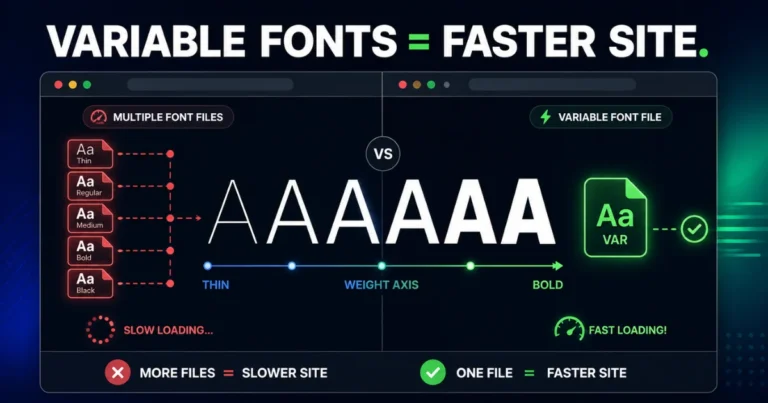
Typography is one of the most overlooked performance drains on a WordPress site. It’s easy to obsess over image compression and caching plugins while your site quietly loads four, five, sometimes six separate font files just to display three font weights across headings and body text. Every one of those files is a network request, and every network request is milliseconds you’re handing over to Core Web Vitals scores you’re trying to protect.
Variable fonts fix this at the source. Instead of loading a separate file for regular, medium, semibold, and bold, a single variable font file contains the entire weight range — and often width and slant too — in one lightweight package. In this guide, we’ll cover how to use variable fonts in Elementor for fast loading, from finding the right font file to configuring it correctly so it actually helps your Core Web Vitals instead of just looking modern.
At Dynamic Tech World, typography optimization is one of the first things we audit on any Elementor site handed to us for a performance pass — it’s consistently one of the easiest wins available.
Table of Contents
What a Variable Font Actually Is
A traditional web font family works like this: if you want to use Regular, Medium, and Bold weights of a typeface, you download and load three completely separate font files. Want an italic version of each? Now you’re loading six. Every one of those is a full HTTP request and a full file’s worth of glyph data, even though all six files are really just different renderings of the same underlying letterforms.
A variable font collapses all of that into a single file. Instead of separate static weights, the font defines “axes” — most commonly weight and width — that can be dialed to any value along a continuous range, from a thin 100 all the way to a heavy 900, using nothing but CSS. One file, infinite weights in between, dramatically fewer requests.
Why This Matters for Core Web Vitals Specifically
Font loading affects two Core Web Vitals metrics directly:
- Largest Contentful Paint (LCP) — if your largest above-the-fold element is text (which it often is, especially a hero heading), the font file has to load and render before that element counts as “painted.” Fewer, smaller font requests mean faster LCP.
- Cumulative Layout Shift (CLS) — when a custom font hasn’t loaded yet, the browser either shows a fallback font (which can shift layout once the real font swaps in) or hides text entirely until the font arrives. Reducing the number of font files reduces the number of moments this can happen across a page.
There’s also a simpler, less technical win: fewer render-blocking font requests generally means a faster Time to Interactive, which matters both for user experience and for how Google’s Core Web Vitals assessment treats your page in search rankings.

The Step-by-Step Guide
Step 1: Find a Variable Font
Google Fonts is the easiest starting point — many popular typefaces (Inter, Roboto Flex, Manrope, Outfit, and others) are available in variable format. On the Google Fonts site, look for fonts tagged “Variable” in the filter options, then download the TTF file.
For this workflow, prioritize:
- WOFF2 format where available — it compresses noticeably better than TTF for web delivery
- Weight axis at minimum — this is the most commonly supported axis and gives you the biggest performance win
- Width axis if your design needs condensed or expanded variants — not every variable font includes this, so check before committing to a typeface if width flexibility matters to your design
Step 2: Upload the Variable Font in Elementor
Inside WP Admin, go to Elementor → Custom Fonts → Add New → Add Variable Font. Name the font, upload your file, and Elementor will detect the available axes on the file — typically weight, and sometimes width. Set the minimum and maximum values for each axis based on what the font file supports (most fonts will show this range on their Google Fonts specimen page before you even download them), then publish.
Step 3: Apply It in the Typography Panel
Open any widget with a Typography setting — Heading, Text Editor, or a global typography style under Site Settings — click the pencil icon next to Typography, and look at the top of the font list. Variable fonts you’ve uploaded appear in a dedicated Variable Fonts section, separated from your regular Google Fonts and static uploads.
Select your variable font, and you’ll see Width and Weight sliders appear instead of a fixed dropdown of weight options. This is the core advantage over static fonts: instead of being locked into increments of 100 (400, 500, 600…), you can dial in any value the font supports, including in-between weights like 450 or 380 if your design calls for it.
Step 4: Set Global Typography, Not Per-Widget Styles
For the performance benefit to actually land, apply your variable font at the Site Settings → Global Fonts level rather than setting it individually on every widget. This keeps you within a single font file referenced sitewide rather than accidentally loading the same variable font multiple times with slightly different configurations, which defeats the purpose.
As a general rule for any WordPress build, not just ones using variable fonts: limit yourself to two font families sitewide — one for headings, one for body text. Adding a third “for personality” is almost never worth the network request it costs you.
Step 5: Enable Font Display Swap
Go to Site Settings → Performance (or your general typography settings, depending on your Elementor version) and make sure font loading is set to Swap. This tells the browser to show a fallback system font immediately while your variable font downloads in the background, then swap it in once ready — preventing invisible text during load, which otherwise directly hurts your LCP score.
Step 6: Turn On Elementor’s Asset Loading Optimizations
While you’re in performance settings, enable Improved CSS Loading and Improved Asset Loading if they aren’t already active. These strip unused CSS and defer non-critical assets, which compounds well with the font-loading reduction you just made — the two optimizations aren’t redundant, they’re addressing different parts of the same rendering pipeline.

A Practical Before-and-After
To make the impact concrete: a typical Elementor site using a static font family with Regular, Medium, Semibold, and Bold weights, each in both normal and italic style, is realistically loading 6-8 separate font files. Switching to a single variable font file covering that same weight range, in WOFF2 format, commonly cuts that down to 1-2 files total — often trimming several hundred kilobytes and multiple round-trip requests before the page can finish rendering text.
Common Mistakes to Avoid
- Uploading a TTF when a WOFF2 is available. TTF files are noticeably larger; always prefer WOFF2 for the actual web build.
- Setting typography per-widget instead of globally. This scatters font-loading configuration across a site instead of consolidating it, undermining the whole point of switching to variable fonts.
- Skipping Font Display Swap. Without it, you can end up with invisible text during the font’s load window, which is worse for perceived performance than a brief flash of a fallback font.
- Using a variable font but still loading additional static weights “just in case.” If you’ve uploaded a variable font covering 300-800 weight, there’s no reason to also keep a separate static Bold file loaded elsewhere on the site.
- Ignoring the width axis when it’s actually needed. If your brand identity uses a condensed heading style, check that your chosen variable font actually includes a width axis before committing — not all do.
When Variable Fonts Aren’t Worth the Switch
If your site currently uses just one font weight sitewide — say, Regular for everything — the performance gain from switching to a variable font is minimal, since you’re already only loading one file. Variable fonts pay off specifically when you’re currently loading three or more static weight/style combinations of the same typeface family. If that’s not your situation, your performance budget is better spent elsewhere, like image optimization or reducing plugin bloat.
A Practical Before-and-After
To make the impact concrete: a typical Elementor site using a static font family with Regular, Medium, Semibold, and Bold weights, each in both normal and italic style, is realistically loading 6-8 separate font files. Switching to a single variable font file covering that same weight range, in WOFF2 format, commonly cuts that down to 1-2 files total — often trimming several hundred kilobytes and multiple round-trip requests before the page can finish rendering text.
Common Mistakes to Avoid
- Uploading a TTF when a WOFF2 is available. TTF files are noticeably larger; always prefer WOFF2 for the actual web build.
- Setting typography per-widget instead of globally. This scatters font-loading configuration across a site instead of consolidating it, undermining the whole point of switching to variable fonts.
- Skipping Font Display Swap. Without it, you can end up with invisible text during the font’s load window, which is worse for perceived performance than a brief flash of a fallback font.
- Using a variable font but still loading additional static weights “just in case.” If you’ve uploaded a variable font covering 300-800 weight, there’s no reason to also keep a separate static Bold file loaded elsewhere on the site.
- Ignoring the width axis when it’s actually needed. If your brand identity uses a condensed heading style, check that your chosen variable font actually includes a width axis before committing — not all do.
When Variable Fonts Aren’t Worth the Switch
If your site currently uses just one font weight sitewide — say, Regular for everything — the performance gain from switching to a variable font is minimal, since you’re already only loading one file. Variable fonts pay off specifically when you’re currently loading three or more static weight/style combinations of the same typeface family. If that’s not your situation, your performance budget is better spent elsewhere, like image optimization or reducing plugin bloat.
Final Thoughts
Variable fonts are one of the rare web performance wins that don’t require compromising on design. You get the same range of weights and styles designers actually want to use, delivered in a fraction of the network cost of the old static-file approach. Combined with Elementor’s Global Fonts settings and Font Display Swap, it’s a meaningful, low-effort contribution to a healthier Core Web Vitals report — exactly the kind of technical detail that matters when a site needs to perform at an enterprise level, not just look the part.
Want your site’s typography audited and optimized properly — variable fonts, Core Web Vitals, and everything in between? Reach out to Dynamic Tech World for a performance-focused Elementor build, or browse our portfolio to see recent work.
Frequently Asked Questions
What is the difference between a variable font and a regular web font?
A regular (static) font requires a separate file for every weight and style combination you want to use. A variable font stores the entire range of weights, and sometimes widths, inside a single file, letting you set any value along that range through CSS instead of loading multiple files.
Does Elementor support variable fonts?
Yes. Elementor Pro allows you to upload variable font files directly through Elementor → Custom Fonts, and applies Width and Weight sliders in the Typography panel instead of fixed weight increments once a variable font is selected.
Will switching to variable fonts actually improve my Core Web Vitals score?
It can meaningfully help Largest Contentful Paint and Cumulative Layout Shift, particularly on sites currently loading three or more static weights of the same font family, since it reduces the number of font-related network requests and layout shift moments during page load.
What file format should I use for variable fonts in Elementor?
WOFF2 is the recommended format for web delivery due to its superior compression compared to TTF, though Elementor also accepts TTF variable font uploads if WOFF2 isn’t available for your chosen typeface.
How many font families should I use on a WordPress site for best performance?
As a general performance guideline, two font families sitewide — one for headings, one for body text — is the professional standard. Additional font families add network requests that are rarely worth the visual variety they provide.
Are all Google Fonts available as variable fonts?
No. Only a subset of Google Fonts are published in variable format. Look for the “Variable” tag in Google Fonts’ filter options, or check a font’s specimen page for its supported axes before committing to it for a project.
Written by Abhay Pathak, Founder of Dynamic Tech World, an ISO 9001:2015 certified web development agency based in New Delhi specializing in performance-focused WordPress and Elementor builds.

Abhay Pathak
Founder, Dynamic Tech WorldAs a full-stack web developer and AI orchestration specialist based in New Delhi, I help creators and agencies scale their digital assets through automated systems, high-speed development, and advanced prompt engineering.
Launch Your Site
Claim up to 20% OFF Premium Web Hosting + a FREE Domain. Fast & Secure.
Claim DiscountJoin the VIP Club
Get free Elementor Pro updates, premium AI prompts, and daily tech hacks directly on our Telegram.
Join TelegramWork With Us
Need a high-converting website, custom AI workflow, or want to advertise your brand to our global audience?
Contact Agency