
RAG-Based Client Support Bot with n8n: A Complete Build Guide
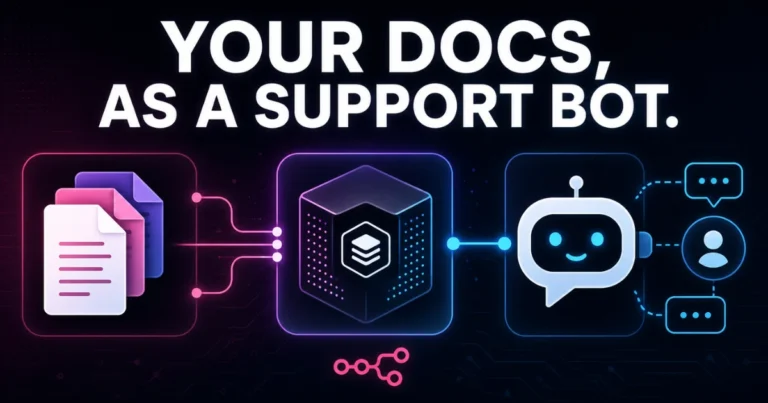
A generic AI chatbot answers questions using whatever it learned during training. A support bot that’s actually useful for your business needs to answer questions using your documentation, your pricing, your policies — information that changes and that no general-purpose model was trained on. That’s the exact gap Retrieval-Augmented Generation, or RAG, is built to close, and n8n now has native support for the entire pipeline without needing a separate backend service.
In this guide, we’ll build a RAG-based client support AI bot using an n8n workflow — from ingesting your knowledge base into a vector store through to a live chat agent that retrieves relevant context and answers grounded in your actual documentation, not a generic guess.
This is a pattern we’ve built for several clients at Dynamic Tech World who wanted a support bot trained specifically on their service catalog, FAQs, and past client communications, rather than a generic chatbot plugin that couldn’t answer anything specific to their business.
Table of Contents
What RAG Actually Solves
Feeding an entire knowledge base directly into a prompt doesn’t scale — you’ll hit context limits fast, and even where it fits, stuffing a model with irrelevant information degrades answer quality. RAG solves this by only retrieving the specific chunks of your documentation relevant to each individual question, then handing just those chunks to the model as context. The workflow becomes: convert your documents into searchable vector embeddings ahead of time, then at query time, pull only the most relevant pieces and let the model answer using that narrow, targeted context.
The Two Workflows You’ll Need
A production RAG bot in n8n is really two separate workflows working together:
- The ingestion workflow — runs once (or whenever your documentation updates), reading your source documents, breaking them into chunks, converting each chunk into a vector embedding, and storing it in a vector database
- The retrieval workflow — runs live, every time a customer sends a message, searching the vector database for relevant chunks and feeding them to an AI Agent to generate a grounded answer
Choosing a Vector Store
n8n has dedicated nodes for several vector databases, and the right choice depends mostly on your existing stack:
- Supabase (pgvector) — the most practical default for most small-to-mid agency clients, since it combines vector storage with a normal Postgres database in one place, and the developer experience is straightforward
- Pinecone — a fully managed, serverless option that’s close to zero-maintenance, worth it for clients who don’t want any infrastructure to think about, or who need to scale to very large document sets
- Qdrant — the best choice for fully self-hosted setups where data needs to stay entirely within your own infrastructure, running as a simple Docker container alongside n8n
For a client support bot with a moderate-sized knowledge base (a few hundred documents, not millions), Supabase is usually the right starting point.
Step 1: Build the Ingestion Workflow
Start a new workflow with a Manual Trigger (or a Schedule Trigger if you want it to re-run automatically when documentation updates). Add a Data Loader node pointed at your source documents — this can pull from Google Drive, a local file path, or a direct upload, and supports PDFs, HTML, and plain text.
Step 2: Chunk the Documents
Add a Recursive Character Text Splitter node immediately after the Data Loader. This breaks long documents into smaller, overlapping pieces suitable for embedding. For support/FAQ-style content, start with:
- Chunk size: 512-1000 tokens
- Chunk overlap: 100-200 tokens
The overlap matters more than it seems — it prevents a key sentence from being awkwardly split across two chunks with neither chunk containing the full context needed to answer a question about it.
Step 3: Generate Embeddings
Add an Embeddings OpenAI node (or your provider of choice) connected to the output of the text splitter. This converts each chunk of text into a numerical vector representing its meaning. The specific embedding model matters — text-embedding-3-small is a solid, cost-effective default for most support content.
Critical detail: whatever embedding model you use here must be the exact same model used later at query time in the retrieval workflow. Mixing embedding models between ingestion and retrieval produces vectors that aren’t comparable to each other, and search results become effectively meaningless.
Step 4: Store the Vectors
Add your chosen Vector Store node (Supabase, Pinecone, or Qdrant) in Insert Documents mode, connecting the Embeddings node’s output to it. Before running this step, make sure your vector store’s table or index dimension matches your embedding model’s output dimension exactly — text-embedding-3-small outputs 1536-dimensional vectors, and a mismatched index configuration causes silent insertion failures that are frustrating to debug after the fact.
Also attach useful metadata to each chunk during insertion — at minimum, the source document name or URL. This becomes what lets your bot cite its sources later, which matters a lot for user trust in a support context.
Step 5: Build the Retrieval Workflow
Start a second workflow with a Chat Trigger node, which gives you a live chat interface (or a webhook endpoint you can embed on your website) that accepts incoming customer messages.
Step 6: Connect the AI Agent
Add an AI Agent node and connect a chat model (GPT-4o, Claude, or your preferred provider) to it. This is the core reasoning engine that will read the customer’s question, decide whether it needs to search your knowledge base, and generate the final response.
Step 7: Connect Your Vector Store as a Tool
This is the step most tutorials get subtly wrong. Connect your Vector Store node to the AI Agent’s tools connector, and set its mode to Retrieve Documents (As Tool for AI Agent) — not the plain retriever mode, and not the older “answer questions with a vector store” node, which has known reliability issues and should be avoided.
In tool mode, the agent decides for itself when it actually needs to search the knowledge base, rather than the workflow blindly retrieving context for every single message regardless of whether it’s needed. A customer saying “thanks, that’s helpful!” doesn’t need a document search — a customer asking “what’s your refund policy for annual plans?” does. Tool mode lets the agent make that call intelligently.
Don’t skip the Tool Description field. The agent reads this description to decide when to invoke the tool, so write it specifically: “Searches the company’s support documentation, FAQs, and policy pages for information relevant to a customer’s question.” A vague or empty description leads to the agent either never using the tool or using it inappropriately.
Step 8: Add a System Prompt That Enforces Grounding
Give the AI Agent a system message that keeps it honest about what it actually knows:
This single instruction is what prevents the most common RAG failure mode: a model that confidently answers using its general training knowledge instead of your actual documentation, producing plausible-sounding but wrong answers about your specific policies or pricing.
Step 9: Add Conversation Memory
Support conversations rarely resolve in a single exchange. Add a Window Buffer Memory node connected to the AI Agent so it retains the last several messages of context within a session — without this, every message would be treated as a fresh conversation with no memory of what the customer already asked.
For longer-running support threads, a Postgres-backed memory table keyed by session ID is a more durable option than in-memory buffer storage, particularly if conversations might resume after a gap.
Step 10: Add a Human Escalation Path
Not every question should be fully automated. Add a branch — either a tool the agent can call, or a simple keyword/confidence check on the output — that routes the conversation to a human via Slack or email when the agent flags low confidence, or when a customer explicitly asks to speak with a person.
Common Mistakes to Avoid
- Mismatched embedding models between ingestion and retrieval. This produces silently broken search results rather than an obvious error, so it’s worth double-checking explicitly.
- Chunk sizes too large. A 2000-token chunk eats a large share of the agent’s usable context per retrieval and dilutes relevance. Stay in the 512-1000 token range and tune based on results.
- Connecting the vector store directly instead of in tool mode. This forces a document search on every single message, wasting tokens and slowing down simple exchanges that don’t need it.
- Leaving the Tool Description blank or vague. This is one of the most common reasons an otherwise correctly built agent fails to use its knowledge base appropriately.
- No fallback for low-confidence answers. Without an explicit instruction to admit uncertainty, models tend to answer confidently even when the retrieved context doesn’t actually support a good answer.
- Forgetting to re-run ingestion after documentation updates. A RAG bot is only as current as its last ingestion run — build a habit (or a scheduled trigger) around re-indexing when your knowledge base changes.
Final Thoughts - RAG-Based Client Support Bot with n8n
A RAG-based support bot is one of the highest-leverage AI implementations a business can build right now — it turns documentation that already exists into an always-available, accurate first line of support, without retraining any models or maintaining a custom backend. n8n’s native vector store and AI Agent nodes make the entire pipeline — ingestion, embedding, retrieval, and grounded answering — buildable visually, with the reliability details (tool mode, matched embedding models, proper chunking) being what separates a genuinely useful bot from a demo that falls apart under real customer questions.
Want a RAG support bot built and trained on your actual documentation, tested against real customer questions before launch? Talk to Dynamic Tech World about your automation needs, or see other automation projects on our portfolio.
Frequently Asked Questions
What is RAG and why does it matter for a support bot?
RAG (Retrieval-Augmented Generation) lets an AI model answer questions using information retrieved from your own documents at query time, rather than relying only on its general training knowledge. This means a support bot can give accurate, specific answers about your actual policies, pricing, and processes instead of generic or incorrect guesses.
Which vector database should I use in n8n for a support bot?
Supabase (pgvector) is a practical default for most small-to-mid businesses since it combines vector storage with a standard Postgres database. Pinecone is a good choice for a fully managed, low-maintenance option at scale, and Qdrant suits fully self-hosted setups that need to keep data entirely in-house.
Why does the AI Agent need the vector store connected as a “tool” rather than directly?
Connecting the vector store in tool mode lets the AI Agent decide for itself when a knowledge base search is actually necessary, rather than performing a search on every single message regardless of relevance. This improves both response speed and answer quality for simple exchanges that don’t need document lookup.
How often should I re-run the ingestion workflow?
Re-run ingestion any time your source documentation changes meaningfully. For frequently updated knowledge bases, a scheduled trigger running ingestion daily or weekly keeps the bot’s answers current without requiring manual re-indexing.
Can a RAG bot cite its sources when answering?
Yes, if source metadata (document name or URL) is attached to each chunk during the ingestion step. Instructing the AI Agent’s system prompt to reference this metadata when answering lets it point customers to the specific document or page an answer came from.
What happens if the bot can’t find a good answer in the knowledge base?
With a properly written system prompt instructing the model to acknowledge uncertainty rather than guess, the bot should clearly state it doesn’t have enough information and offer to escalate to a human team member instead of fabricating a plausible-sounding but incorrect answer.

Abhay Pathak
Founder, Dynamic Tech WorldAs a full-stack web developer and AI orchestration specialist based in New Delhi, I help creators and agencies scale their digital assets through automated systems, high-speed development, and advanced prompt engineering.
Launch Your Site
Claim up to 20% OFF Premium Web Hosting + a FREE Domain. Fast & Secure.
Claim DiscountJoin the VIP Club
Get free Elementor Pro updates, premium AI prompts, and daily tech hacks directly on our Telegram.
Join TelegramWork With Us
Need a high-converting website, custom AI workflow, or want to advertise your brand to our global audience?
Contact Agency